Endoscope Camera Connector
- 3.6
- Rating
- 100.00K
- Installs
- Free
- Price
 Analysis by App-foxy
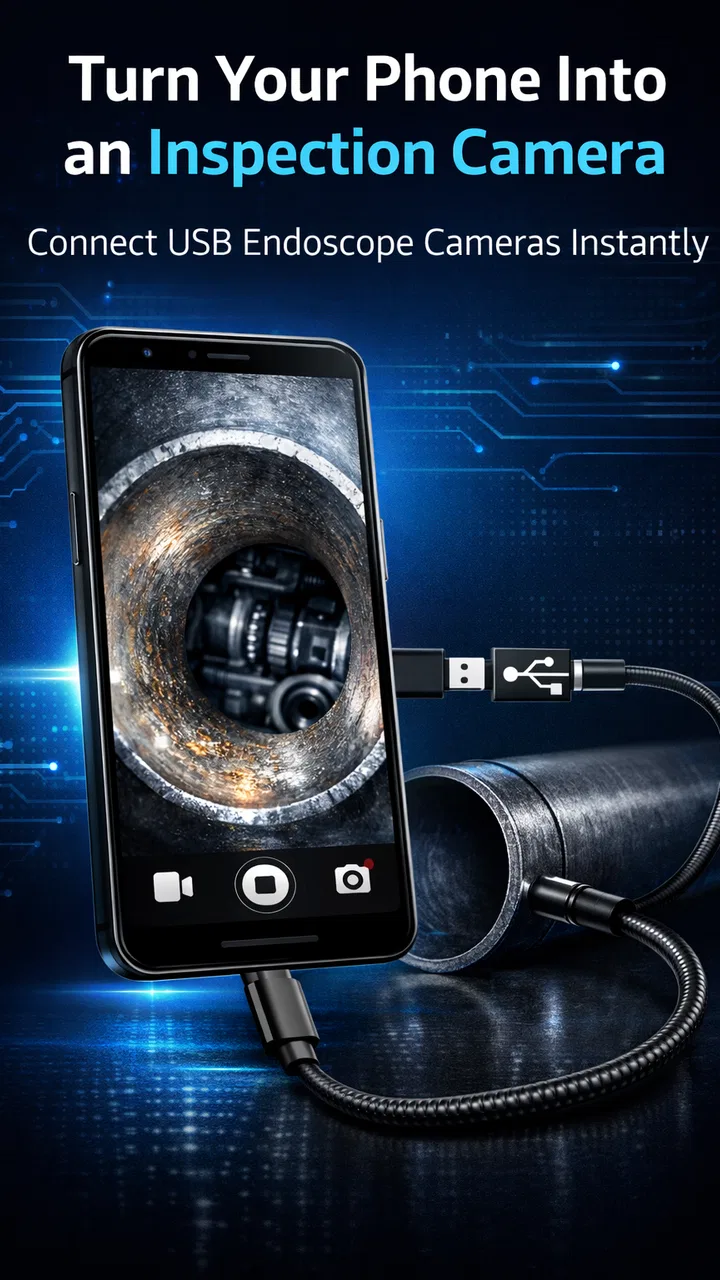
I approached Endoscope Camera Connector as a practical utility rather than a camera app for casual photography. Its purpose is straightforward: it works with a USB OTG borescope or inspection camera so an Android phone can display what the small camera sees. That makes it useful for places where a normal phone camera is too large or cannot bend around an obstacle.
In my experience, the value here depends less on visual polish and more on whether the app fits your particular USB inspection camera. When the connection works, the phone becomes a convenient screen for checking narrow gaps, tubes, cavities, and awkward corners. When the hardware, adapter, or phone compatibility is wrong, the app cannot solve that problem by itself. That distinction is important before downloading it.
What the app is really for
FastSoft publishes this free utility in the Libraries & Demo section, although its practical role is closer to a simple inspection monitor. It is aimed at people using a compatible USB OTG endoscope camera, not at users looking for a general-purpose camera replacement. The Everyone age rating also makes its audience broad, but the real requirement is having the right external camera and a phone that can communicate with it.
You May Also Like

 Blood Strike: 2.5 Anniversary
Blood Strike’s Loadouts Turn Every Drop Into a Tactical Gamble
A close look at Blood Strike’s custom loadouts: how fast access to signature weapons reshapes its battle royale rhythm, rewards preparation, and narrows the gap between fights.

 Pandora - Music & Podcasts
Pandora’s Music Is Easy to Start, but Harder to Recover
Pandora’s strength is its low-effort path from a seed to a station. Its weak spot is how much confidence it asks you to place in connection, setup, and quiet recovery.

 8 Ball Pool
 Is Built on Rivalries, Rematches, and Routine
A close look at the rivalries, rematches, shared routines, and unanswered safety questions that turn a quick pool match into a persistent mobile community.

 Samsung Music
’s Quiet Strength Is Playing What You Already Own
Its reach comes less from spectacle than from dependable access to a personal library. That simplicity is both the app’s strongest retention engine and its ceiling.

 AccuWeather: Weather Radar
AccuWeather Review: A Quick, Clear Forecast for Everyday Decisions
For everyday plans, the best forecast is the one you can understand quickly. AccuWeather makes rain timing, radar, and local conditions easy to act on, with a few trade-offs.

 Hill Climb Racing
Why Hill Climb Racing Still Turns Crashes Into One More Run
A tiny car, a bumpy hill and one more upgrade: Hill Climb Racing keeps resurfacing because its simple chaos makes every near-miss feel personal.
More From Our News Desk



The app has been available since July 2, 2020, and the current version is 20. It supports Android 7.0 and later, which covers many older phones as well as newer devices. That older compatibility can be helpful if you have a spare Android handset you want to dedicate to workshop checks, vehicle work, home maintenance, or occasional inspections.
It has passed the early trial stage for many users, with over one hundred thousand installs. Its average rating is 3.6 from around seven thousand ratings, alongside roughly one thousand reviews. I read that combination as a useful warning rather than an automatic rejection: the app clearly works for a meaningful group, but connection reliability and device differences matter enough to affect the experience.
A sensible baseline workflow
I would begin with the hardware disconnected and make sure the phone has enough battery for the inspection. USB endoscopes can draw power from the phone, so a long session may be more demanding than simply opening a normal camera. If the phone has a protective case around its USB port, removing the case can also help the connector seat fully.
The usual sequence is simple: connect the OTG adapter to the phone, attach the inspection camera, and then open the app. If Android displays an accessory permission prompt, I would allow it for the session. The important habit is to connect everything firmly before assuming the app is at fault. A loose adapter can look exactly like an unsupported camera.
For a first test, I would use a well-lit, easy-to-reach surface rather than immediately pushing the probe into a wall cavity or engine compartment. This separates basic connection problems from the harder challenge of controlling a flexible camera. Once the image appears, move the probe slowly and keep the cable from twisting sharply. A live inspection image is much easier to interpret when the camera movement is deliberate.
A realistic household example would be checking why a sink cabinet has a damp smell. I would place a towel underneath, connect the camera, and inspect around the rear of the drain and the difficult space behind the pipes. The app can help reveal moisture, debris, or a misplaced object without requiring me to dismantle everything first. It is not a replacement for a plumber, but it can make the first investigation less disruptive.
For a car or bicycle, I would use the same method but keep expectations controlled. The camera can help look into tight areas, yet the image may not show depth clearly. A mark that looks close may be several centimeters away, and a shiny metal surface can reflect the built-in light. I found that moving the probe a little at a time and pausing after each adjustment gives more useful information than sweeping it quickly.
Settings and connection checks worth your time
The first setting worth checking is not an image effect; it is the phone’s USB OTG behavior. Some phones handle OTG automatically, while others expose a system option or disable the connection after a period of inactivity. If the preview is blank, I would check the phone’s USB connection behavior, reconnect the adapter, and try again before changing random app settings.
Brightness is another practical concern. An endoscope’s small light can be harsh in a dark cavity, but turning it up too far can wash out nearby surfaces. If the camera has its own physical light control, I would adjust that gradually while watching the preview. The best view is often not the brightest one. Preserving texture and edges matters more than making the whole screen look white.
Screen orientation deserves attention as well. A flexible probe rarely points in the same direction as the phone, so I would rotate the handset or the camera slowly rather than fighting the image mentally. If the app follows the phone’s orientation, choosing a comfortable viewing position before inserting the probe can reduce confusion. If it does not, I would treat the on-screen direction as a reference and mark the cable position physically.
Permissions should be handled practically. The app needs access to communicate with the connected camera, but I would avoid granting unrelated permissions if Android presents choices that do not appear necessary for the inspection. After allowing access, close and reopen the app if the preview does not start. That simple reset is often faster than repeatedly unplugging the probe while it is inside a narrow space.
One useful preparation is to test the complete setup at home before taking it to a job. Try the exact phone, OTG adapter, camera, and cable together. USB connectors that look identical can behave differently, and not every phone supports every accessory combination. This is especially important if the inspection is time-sensitive, such as checking a blocked drain before guests arrive or examining a vehicle before a trip.
Faster patterns for repeat inspections
Experienced use is mostly about repeatable habits. I would keep the OTG adapter with the endoscope rather than storing each piece in a different drawer. That reduces the chance of arriving at a repair task with the camera but no adapter. I would also coil the probe loosely, avoiding tight bends that could make later positioning harder.
Before inserting the camera, I would decide what question I am trying to answer. “Is there water behind this panel?” is more useful than simply exploring. A clear question determines where to place the probe, how much light is needed, and when to stop. Without that focus, it is easy to spend several minutes watching an unclear image without learning anything.
For a narrow opening, I would use a slow advance-and-pause pattern. Push a small amount, stop the cable, observe the image, and note the direction of any feature. Then rotate the probe slightly and compare the view. This creates a mental map of the space. Fast movement produces motion blur and makes it difficult to tell whether a suspected crack or obstruction is real.
I also recommend using the phone as a viewing tool first and documenting findings separately if the inspection matters. If the app offers the controls you need on your particular setup, use them, but do not assume a live preview is automatically a reliable record. For a repair, I would write down the location, orientation, and approximate distance of a problem while it is visible. A short note can be more useful later than an unexplained image.
Another efficient pattern is to inspect from two directions whenever possible. A blockage seen from one side may look like a solid wall, while viewing it from the opposite opening can reveal a gap or a loose edge. The app makes this kind of visual comparison convenient because the phone can be moved between access points, but the interpretation still depends on careful positioning.
For shared household use, I would clean the probe according to its construction and the manufacturer’s instructions rather than treating it like a waterproof instrument automatically. The app displays the camera feed; it does not protect the camera from moisture or chemicals. Keeping the lens clear and the cable clean improves the image and avoids turning a small inspection into a damaged-accessory problem.
Where the setup reaches its limits
The biggest limitation is compatibility. Endoscope Camera Connector is not a universal bridge for every USB camera. The phone must support the necessary OTG connection, the adapter must work, and the inspection camera must present a signal the app can use. A failure at any point can result in a black preview or no response. That is why I would test the exact combination before relying on it professionally.
The second limitation is the quality of the external camera. The app cannot add detail that the probe does not capture. A low-cost camera may struggle with glare, dim areas, or fine cracks, and the small lens can make orientation difficult. If you need dependable evidence for a structural, medical, or safety-critical decision, I would choose a purpose-built inspection system with known hardware compatibility instead of relying on a general Android utility.
Power is another trade-off. The phone may supply energy to the connected accessory, and that can shorten battery life during a long inspection. I would start with a charged phone and avoid using a device that is already close to shutting down. A portable battery may help the phone, but it will not necessarily power the camera unless the specific adapter and setup support that arrangement.
There is also a practical difference between seeing and diagnosing. The app can show a live view, but it does not turn that view into measurements, a depth map, or an expert conclusion. A dark line may be a crack, a seam, or a shadow. A wet-looking patch may be condensation or a reflection. I would use the app to locate areas that deserve closer attention, then confirm important findings by opening the panel, cleaning the area, or consulting a qualified professional.
Compared with a normal phone camera, this setup wins whenever access is the problem. A standard camera is quicker for documenting an exposed object and generally easier for ordinary photos, but it cannot look around a bend or inside a narrow passage. Compared with a dedicated inspection monitor, this app-based approach is cheaper and more portable, yet it relies more heavily on the user’s phone, adapter, camera, and troubleshooting skills.
It is also less suitable for users who want a completely automatic experience. Someone expecting to plug in any camera and receive a perfect preview may find the process frustrating. I would skip it if you do not already have a compatible USB OTG endoscope, if your phone has unreliable USB accessories, or if the inspection carries serious consequences. In those cases, buying a matched camera-and-display kit is the safer choice.
Who will get the most from it
I think this app is a good fit for homeowners who occasionally investigate hard-to-reach spaces. It can be useful for checking behind appliances, looking under furniture, inspecting a vent opening, or finding an object that has slipped into a narrow gap. The benefit is not that every inspection becomes easy; it is that the first look can happen without immediate disassembly.
It also makes sense for hobbyists who already own an Android phone and a compatible borescope. Bicycle maintenance, electronics enclosures, model projects, and workshop cleanup can all benefit from a small live view. The free price makes experimentation less risky, especially when the app is being used as a companion to hardware you already have.
Technicians and tradespeople may find it useful as a backup viewer, particularly when portability matters. I would still test it on the exact work phone and camera before adopting it as part of a paid workflow. A backup tool is valuable only if it starts reliably, remains usable with gloves or awkward positioning, and gives an image clear enough for the task.
People who should pass are those looking for a standalone camera, a medical examination tool, or professional-grade inspection reporting. This is a viewer for a connected USB accessory, not a complete diagnostic platform. It can support an inspection, but it should not be confused with equipment designed for regulated or high-risk work.
My verdict after using the workflow
My opinion of Endoscope Camera Connector is practical rather than enthusiastic: it is worthwhile when the hardware match is right and your goal is simply to see into a difficult space. The interface concept is easy to understand, and the app gives an Android phone a useful role that its built-in camera cannot provide on its own.
The best results come from treating it as part of a system. Test the OTG adapter and camera together, connect them before beginning the inspection, adjust light carefully, move the probe slowly, and record what you learn instead of relying on memory. Those habits matter more than rushing through menus or expecting software to compensate for an unsuitable camera.
FastSoft’s app is free, supports Android 7.0 and later, and has attracted a substantial installed audience, but the middling average rating reflects the reality that USB accessories are inconsistent. I would recommend it to a friend who already owns a compatible borescope and wants a low-cost phone-based viewer. I would not recommend it as a blind purchase for someone who has not checked hardware compatibility.
My final recommendation is conditional but positive: use it for everyday, non-critical inspections where portability and convenience matter, and keep a dedicated inspection solution in mind for demanding work. If your phone recognizes the camera and the preview remains stable, this small app can turn an otherwise awkward task into a manageable one.
FAQs for Endoscope Camera Connector
01What is the Endoscope Camera Connector app used for?
The Endoscope Camera Connector app is designed to interface with USB or wireless endoscope cameras, allowing users to view live video feeds directly on their Android or iOS devices. This app is particularly useful for professionals or hobbyists who need to inspect hard-to-reach areas, such as pipes, engines, or electrical installations.
02Is the Endoscope Camera Connector app compatible with all devices?
While the app supports a wide range of Android and iOS devices, compatibility largely depends on your device's specifications and the endoscope model. It's essential to check the app's requirements and ensure your device supports USB OTG or Wi-Fi connectivity for a seamless connection with the endoscope camera.
03How do I connect my endoscope to the app?
To connect your endoscope, ensure your device supports USB OTG or Wi-Fi. For USB endoscopes, use a compatible OTG cable to connect the camera to your device. Launch the app, and it should recognize the camera automatically. For wireless models, connect to the camera's Wi-Fi network and open the app for video feed access.
04Does the app offer any image enhancement features?
Yes, the Endoscope Camera Connector app includes several image enhancement features. Users can adjust brightness, contrast, and resolution to improve image quality. Additionally, the app may offer zoom functionality and the ability to capture images or record videos for later review, making it versatile for various inspection tasks.
05Is there a cost associated with using the Endoscope Camera Connector app?
The app is typically free to download, but some features may require in-app purchases or a subscription for advanced functionalities. It's advisable to review the app's pricing details before downloading to ensure it meets your needs without unexpected costs. Always check for any hidden fees associated with third-party endoscope brands.
Pros
- Easy connection with various camera models.
- User-friendly interface for quick setup.
- Supports high-resolution video streaming.
- Compatible with both Android and iOS.
- Low latency ensures real-time viewing.
Cons
- Limited compatibility with older devices.
- Requires stable internet for smooth use.
- Battery consumption is relatively high.
- Some features are locked behind paywall.
- Occasional connection drops in low signal areas.

Endoscope Camera Connector
Gallery